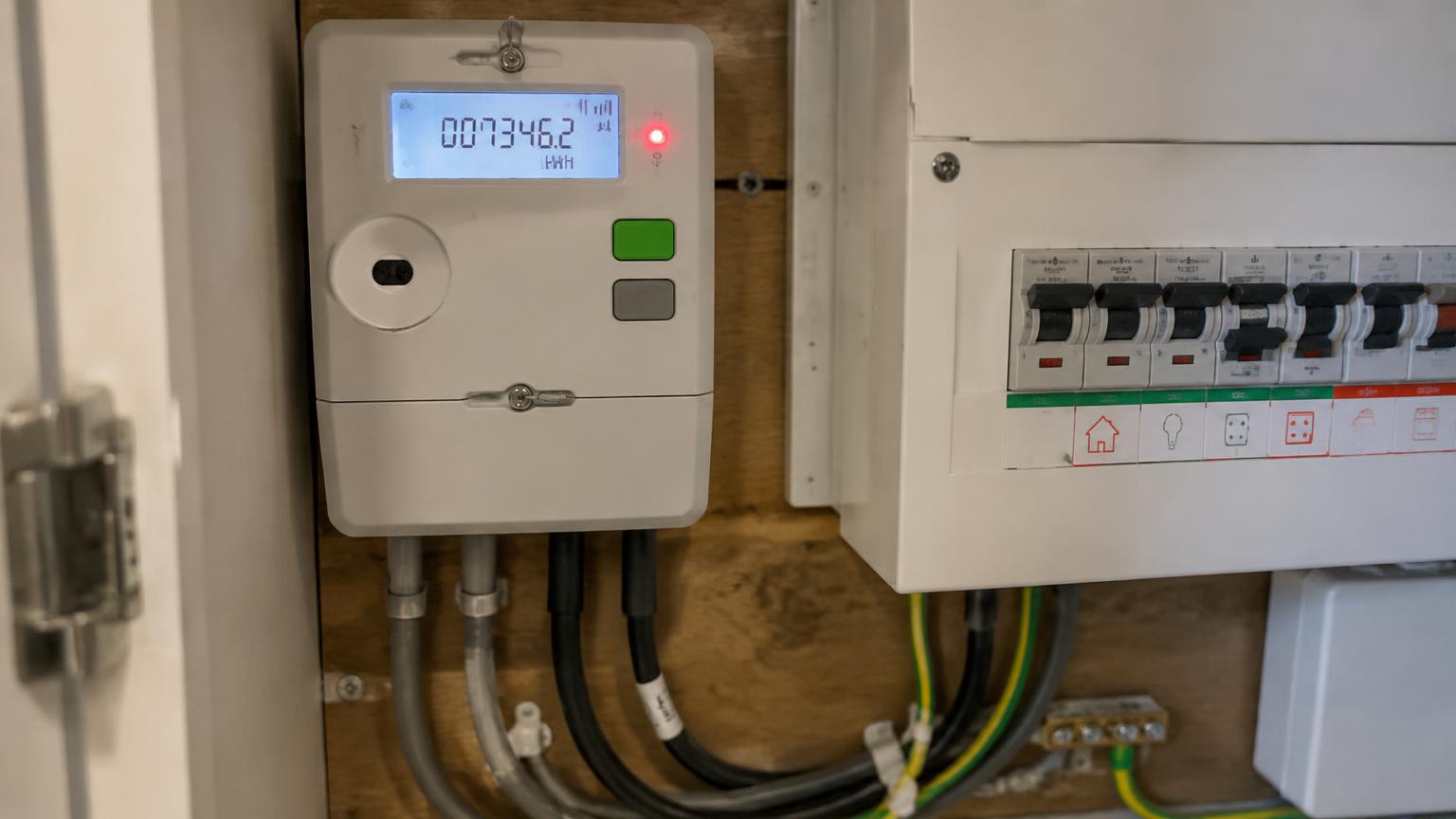
Your smart meter can show how much electricity you use and when waste may be creeping in. Find the kWh display, note the time, and compare readings at consistent intervals. A small overnight increase may be normal, but a sudden spike deserves a closer look. Before you blame an appliance or change your routine, check what the meter’s symbols and timing are really telling you.
Find Your Smart Meter’s kWh Reading
Start by finding the screen or menu labeled kWh, which shows how much electricity you’ve used. If your meter cycles through several screens, wait for the reading to appear or use its button to move through the options.
To locate display information, check the meter’s face, nearby labels, or your utility’s instructions. Identify register numbers associated with your electricity use, then note the kWh figure shown.
Write down the reading and its date so you can compare it later. If the screen is blank or difficult to access, contact your utility for help rather than guessing or altering the meter.
Decode Meter Symbols and Usage Units
Your smart meter’s symbols show which screen or function you’re viewing.
Look for labels such as kWh, which measures the electricity you’ve used. Once you know these symbols and units, you can read your usage with confidence.
Common Meter Symbols
Smart meter symbols turn a changing display into useful information. Display status icons can show whether your meter is active, asleep, or checking a reading. Communication symbols indicate whether it’s sending data to your utility; a blinking signal may mean it’s trying to connect.
Meter alert indicators can flag a low battery, a service issue, or a possible fault. Check your meter’s guide before interpreting unfamiliar symbols, since designs vary by model.
If an alert stays visible or you see a warning you don’t recognize, contact your utility provider. Don’t remove the meter cover or attempt repairs yourself; use the display and manual to identify what needs attention safely.
Understanding Usage Units
Once you recognize the symbols, check the units beside each reading to see what your meter measures. Your electricity use usually appears in kilowatt hours, or kWh. One kilowatt hour represents the energy a 1,000-watt appliance uses in one hour.
Your meter may show total consumption, current demand, or both, so check the label before comparing numbers. Some displays cycle through readings automatically; wait for the relevant screen or consult your meter’s guide.
If you see kW, that’s power at a moment, not energy used over time. Understanding each energy measurement helps you track changes, spot unusual spikes, and focus on where you can reduce waste.
Compare Smart Meter Readings by Time
Comparing meter readings at different times helps you see when your energy use rises or falls. Check your smart meter at consistent intervals, such as morning, afternoon, and evening, and note each reading with its time.
You can compare hourly readings to spot short-term changes, then monitor daily trends by recording totals across several days. Keep your routine steady so differences reflect your actual schedule, not mismatched measurement periods.
Compare weekdays with weekends, or one day with another, to see how timing affects overall use. A simple table or meter app can make patterns easier to review and help you plan when to check again.
Find Energy Hogs With Your Meter
Check your smart meter as you run each appliance to spot heavy energy users. Turn devices off and compare readings to catch standby power.
Compare peak readings across times of day to see when your usage surges.
Check Appliance Usage
To find an appliance that’s driving up your bill, watch your smart meter’s power reading as you switch devices on and off. Choose one device at a time, and note how much the displayed demand changes. For a fair comparison, keep other household activity steady and allow the meter a moment to update.
Run appliances through a full use cycle to identify appliance cycles, such as a heater switching on or a washer heating water. Record each reading and how long you use the device.
Then use your electricity rate and the measured consumption to estimate device costs. Compare results to spot the biggest users.
Track Standby Power
Even when appliances are off, some draw standby power to keep displays lit, respond to remote controls, or stay connected. Check your smart meter’s live usage, then unplug a device or switch off its power strip. Watch whether the reading drops; repeat with chargers, game consoles, televisions, and other electronics to spot energy hogs.
Don’t let Standby Power Myths distract you: not every plugged-in device wastes the same amount, so test yours. Estimate Phantom Load Costs by tracking how much usage falls over a set period, then compare your results with the device’s convenience.
Use smart plugs or timers for equipment you rarely need ready, and unplug chargers when you’re done.
Compare Peak Readings
When you compare your meter’s live readings during different activities, you can spot which appliances draw the most power. Turn on one device at a time, then note how the display changes. Test your oven, clothes dryer, air conditioner, and other heavy users.
Compare their readings with your normal household baseline to identify the biggest jumps. Watch for Peak Demand when several appliances run together; staggering their use can reduce your highest draw.
If your utility offers Time of Use Rates, check its schedule and shift flexible tasks to cheaper hours. Repeat tests under similar conditions, and record results so you can track improvements.
Check Overnight Use and Standby Power
Check your smart meter late at night, when household activity is low, to see how much electricity your home still uses. Compare that reading with one you take before bed. The difference helps you estimate your overnight usage and spot a steady baseline.
Some power use is normal: your refrigerator, router, and other essential devices keep running. But standby consumption from televisions, game consoles, chargers, and other electronics can add up.
Turn off or unplug devices you don’t need overnight, then check the meter again on another night. You’ll see whether those small changes lower your home’s background electricity use. Note essential appliances before making changes.
Investigate Sudden Spikes in Meter Use
If your smart meter shows a sudden jump, note when it happened and what was running at the time. Compare the reading with your usual pattern, checking whether you used an appliance more than usual or ran several devices together.
This sudden spike investigation can help you narrow down unexplained usage causes, such as a faulty water heater, an appliance left on, or a heating system working harder in cold weather. Check your meter’s interval data, if available, to see how long the increase lasted.
If the spike continues without a clear reason, contact your utility or a qualified electrician to investigate.
Turn Meter Insights Into Simple Savings
Once you’ve identified what’s driving your energy use, use your meter’s readings to choose small changes that can lower it. Shift laundry to off-peak hours if your plan rewards it, and switch off devices that draw power while idle. Compare your readings before and after each change to see what works.
Build Energy saving habits around the appliances you use most, such as adjusting your thermostat or running full loads. For bill reduction стратегии, set a realistic weekly target and track progress without sacrificing comfort. Keep the changes that deliver noticeable savings, then try another simple adjustment to steadily reduce your energy use.
Fix Missing or Confusing Meter Readings
When a smart meter shows missing or confusing readings, start by checking its display and your energy app for error messages or a signal warning.
If the screen is blank, confirm the meter has power and press its display button; consult your supplier’s guide to troubleshoot blank screens safely. Don’t open the meter or disturb its wiring.
If your app shows old figures, clarify delayed updates by checking when it last synced. Compare readings with your meter display, noting the date and units.
If values still conflict or remain absent, contact your energy supplier with photos and account details. Ask when readings should resume, and submit a manual reading if requested.
Frequently Asked Questions
Can My Smart Meter Affect My Electricity Bill?
Yes, your smart meter can affect your electricity bill by accurately measuring your usage, not by changing it. Understanding smart meter billing and checking meter readings for accuracy help you spot errors and dispute incorrect charges.
Who Can Access the Data Collected by My Smart Meter?
Your smart meter’s data has a small guest list: you, your utility, and authorized service providers may access it. Data access rights vary by location, and Third party sharing usually requires your consent or legal authorization.
Does a Smart Meter Work During a Power Outage?
Usually, your smart meter stops transmitting readings during a power outage, though it may store data for later. Without backup power, you’ll face outage limitations; your utility may still detect the outage through other systems.
Can I Opt Out of Having a Smart Meter?
You may opt out of a smart meter, but rules vary by utility and location. Check your Opt Out Rights, then follow your provider’s Refusal Process; you might face fees or an alternative meter.
How Can I Request a Smart Meter Privacy Policy?
Requesting a policy is straightforward: contact your utility by phone, email, or its website and ask for its smart meter privacy policy. Privacy policy contents should explain data collection, sharing, retention, security, and your choices.